

Add an expense using a receipt or document
Use a photo or document to create an expense record in the PD-1 app.

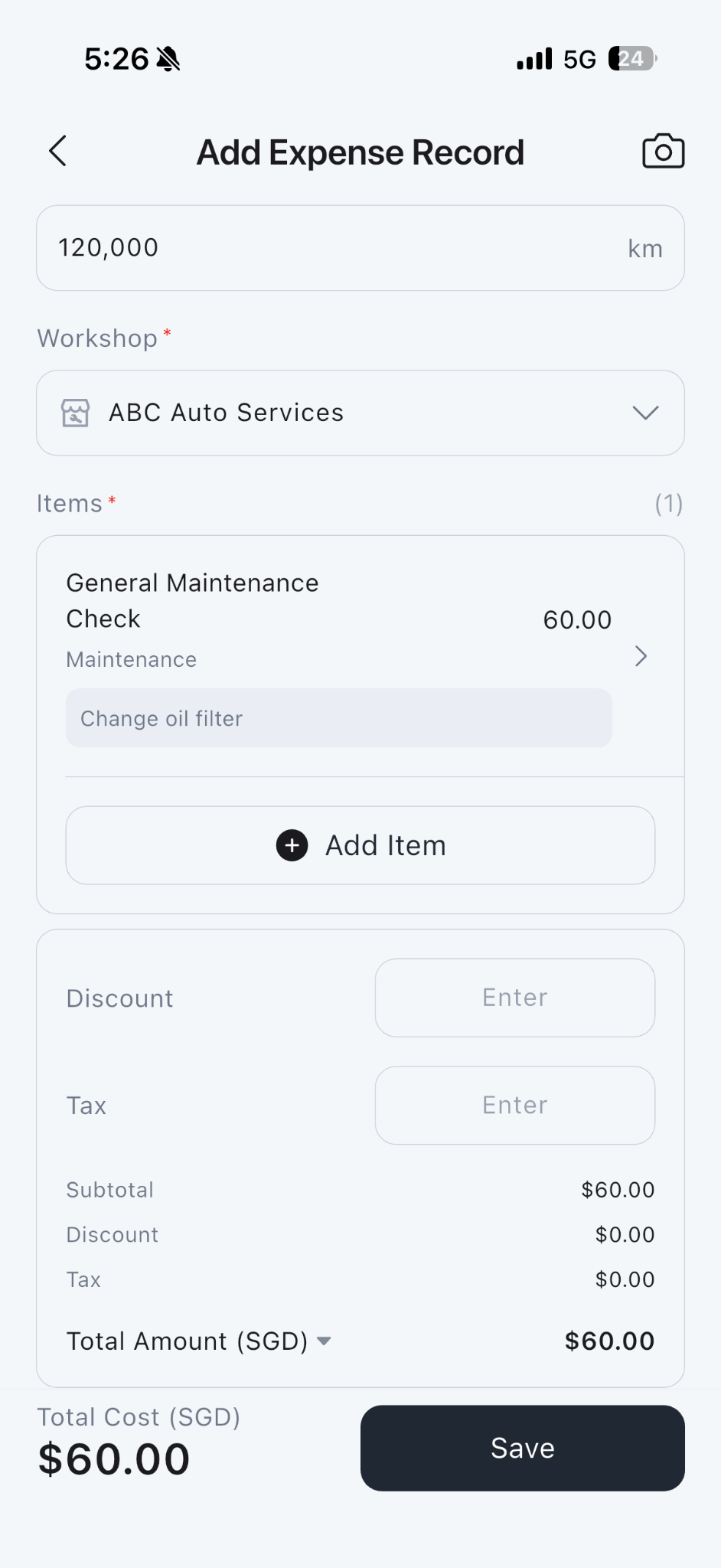
1. Open the Expense tab and tap the camera beside Add Expense Record.
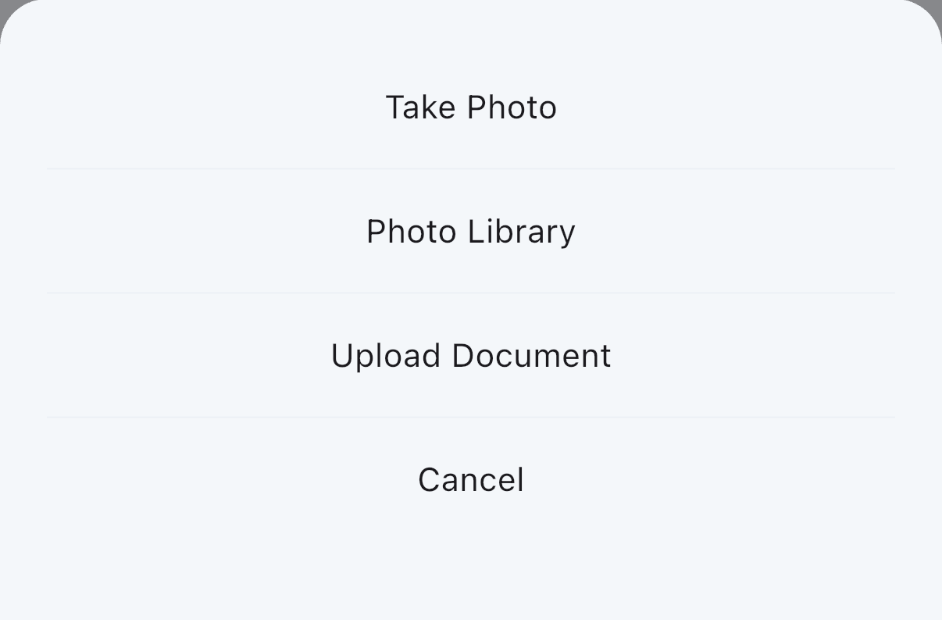
2. Choose Take Photo, Photo Library or Upload Document and select your receipt or document.
3. Review the information in Add Expense Record, including the date, mileage, workshop and items. Correct or complete any fields as needed.
4. Check the totals, discount and tax, then tap Save.